YOUR DIGITAL DEVELOPMENT PATHWAY
ROAD TO SUCCESS
Build practical digital skills, strengthen your ICT Club, create with technology and develop the confidence to solve real problems.
Build Skills That Strengthen Your Club
Each course is practical, interactive and connected to the work ICT Club learners and patrons actually need to do.
 01
READY
01
READY
Foundational Computer Skills
Build confidence using computers, keyboard and mouse controls, files, folders, storage and productivity tools for real ICT Club work.
Start Course→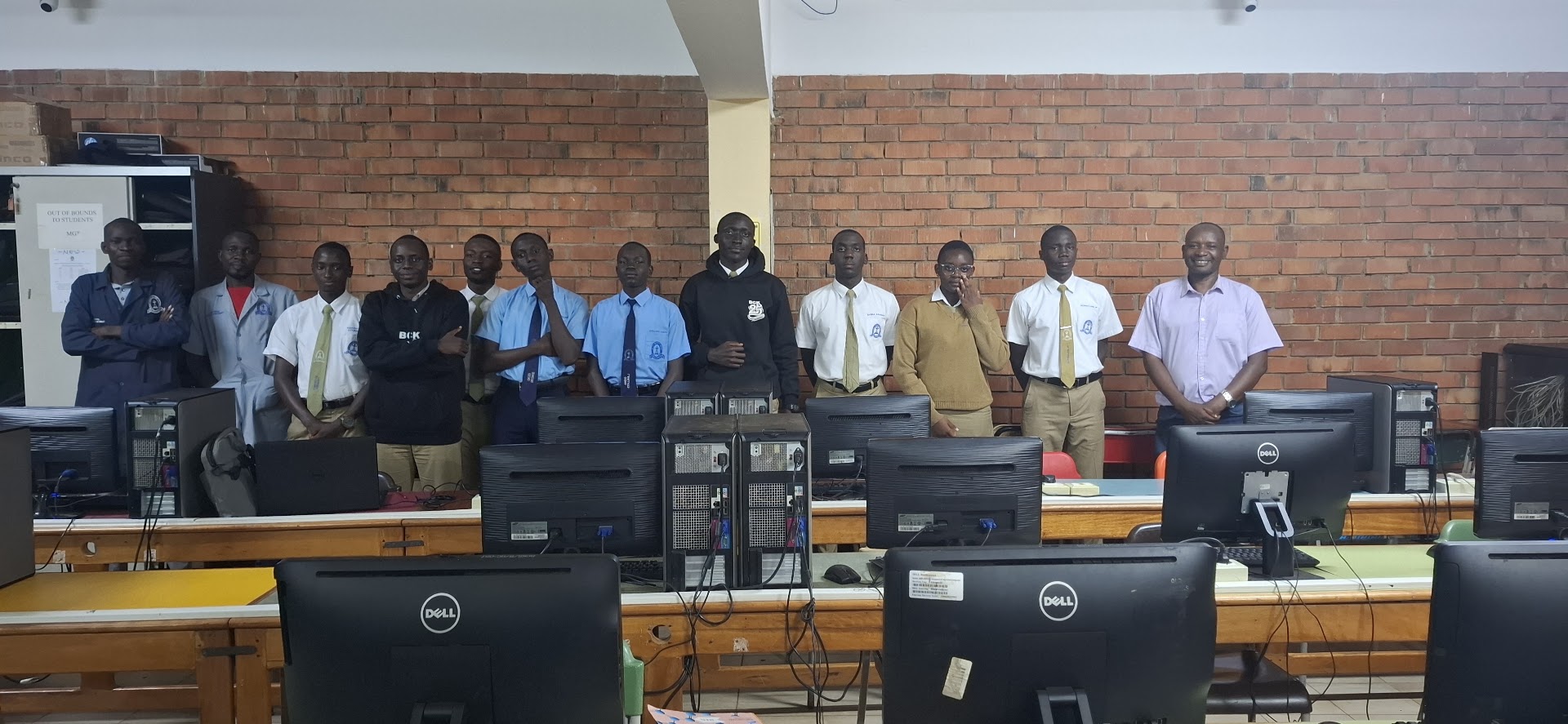 02
LOCKED
02
LOCKED
ICT Laboratory Management & 5S
Build a culture of ownership, organisation, cleanliness, equipment protection and sustainable laboratory management using the 5S approach.
Locked→ 03
LOCKED
03
LOCKED
Basic Maintenance & Troubleshooting
Identify common hardware and software problems, perform safe first-level checks and report faults clearly before escalating repairs.
Locked→ 04
LOCKED
04
LOCKED
Internet Safety, Cybersecurity & Digital Citizenship
Protect accounts and personal information, recognise scams and phishing, communicate responsibly and build a safer digital culture.
Locked→ 05
LOCKED
05
LOCKED
Coding, Web Development & Application Concepts
Move from technology user to creator through programming logic, coding, web development and application thinking.
Locked→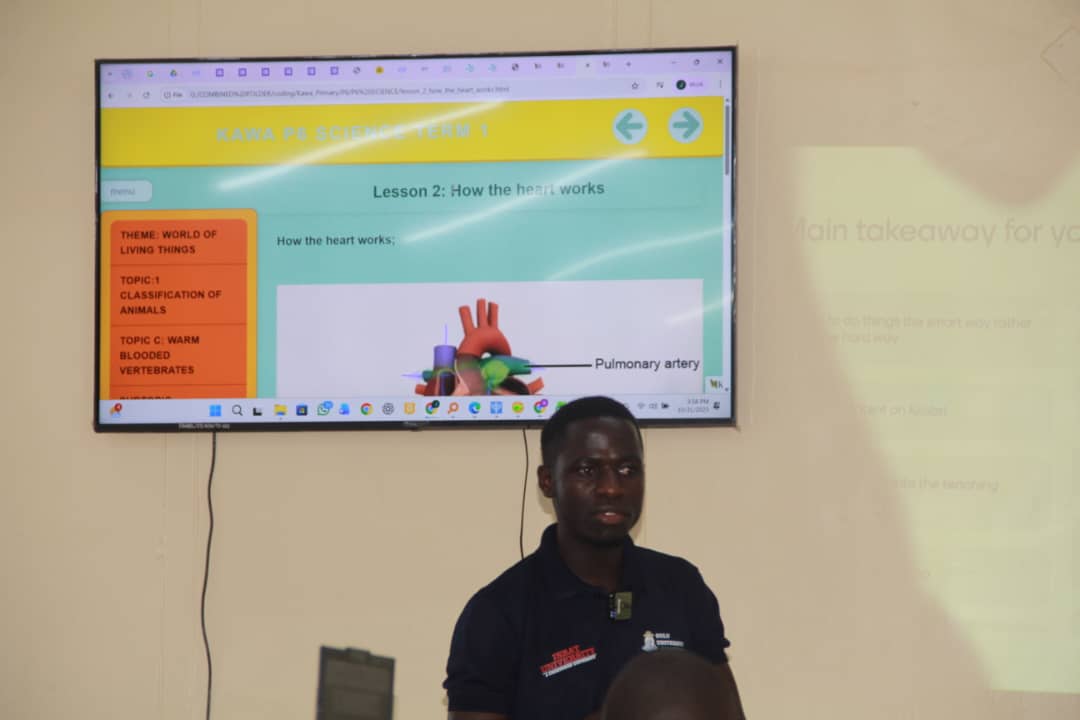 06
LOCKED
06
LOCKED
Digital Content Creation & Communication
Create presentations, graphics, photographs, digital stories, videos, school news and strong project documentation.
Locked→ 07
LOCKED
07
LOCKED
Artificial Intelligence & Emerging Technologies
Explore artificial intelligence and emerging technologies through responsible use, verification, privacy awareness and human judgement.
Locked→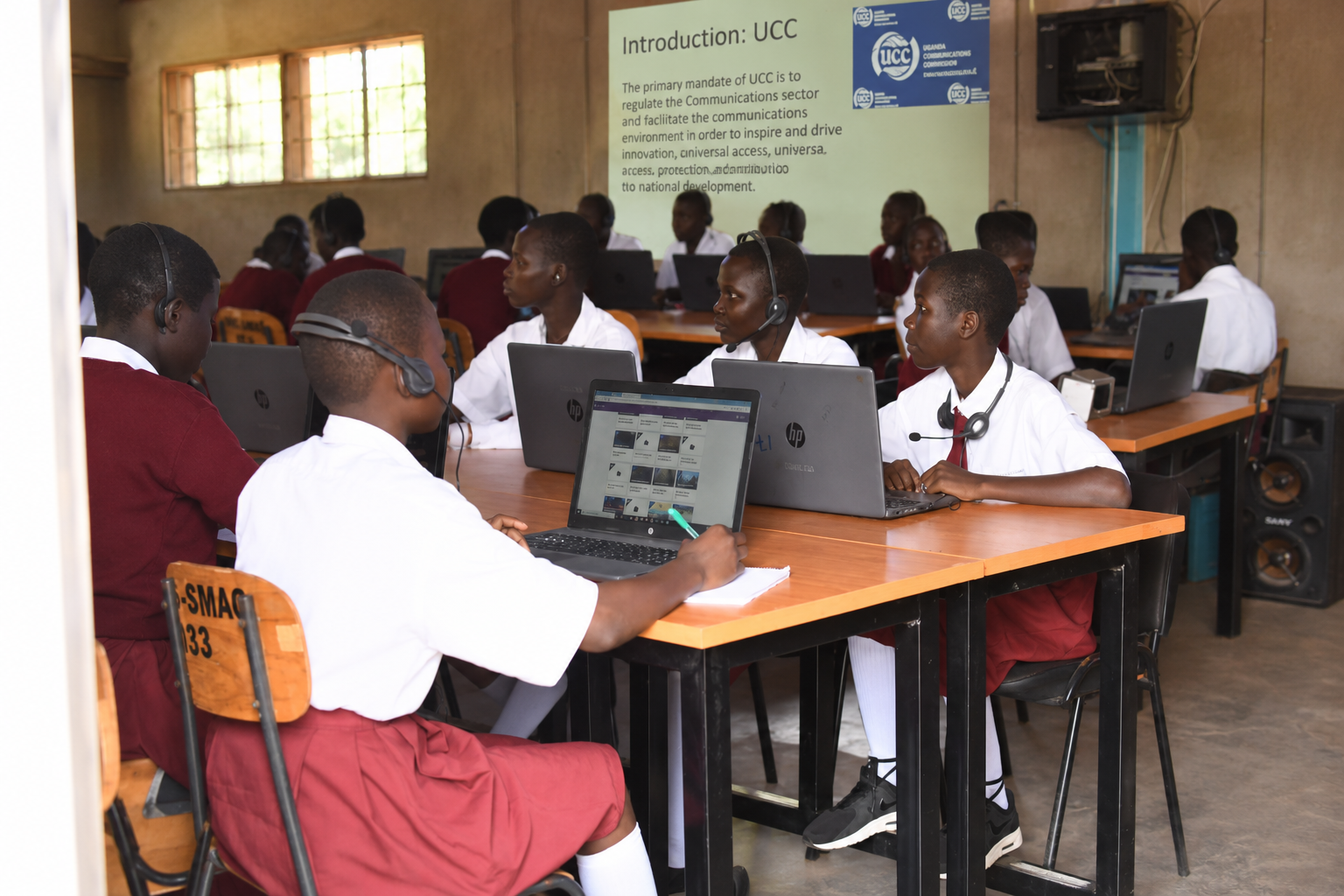 08
LOCKED
08
LOCKED
Online Learning & MOOCs
Learn independently, evaluate quality online resources, document progress and organise offline sharing when connectivity is limited.
Locked→Foundational Computer Skills
Build confidence using computers, keyboard and mouse controls, files, folders, storage and productivity tools for real ICT Club work.
READY TO STARTFOUNDATIONAL COMPUTER SKILLS
This course prepares you to become a confident and useful ICT Club member. Learn to operate a computer, organise club work, use common digital tools, protect your files and support other learners.
Complete the learning missions, practical assignments, interactive challenges and final digital-readiness assessment.
Start with Mission 1
Complete the core checkpoints, final quiz and practical verification to unlock Course 2.
Know Your Computer
Understand the basic computer system and how different parts support ICT Club learning, administration, projects and innovation.
Input
Information enters the computer through devices such as a keyboard, mouse, microphone or scanner.
Processing
The computer works on information according to the instructions provided.
Output
Results are presented through devices such as the monitor, printer, speakers or projector.
Storage
Digital information is kept so that the club can use it again later.
Quick Check
Which device is mainly used to display information?
ICT Lab Hardware Hunt
With permission, identify at least 10 pieces of ICT equipment in your laboratory. Record what each one does and whether it is working.
Find the Computer Process
Choose one real ICT Club activity and identify its input, processing, output and storage.
Start Smart
Learn safe startup, login, desktop navigation and proper shutdown.
Before Starting
Keep your hands dry, observe the workstation, check visible cable connections, avoid exposed wiring and confirm that power is available.
Safe Shutdown
Save your work, close programs, choose Shut Down and allow the computer to switch off properly. Never simply remove power.
Startup Sequence Challenge
Click the steps in the correct order.
Decision Challenge
The computer is taking longer than usual to start. What is the best first action?
Startup Demonstration
Demonstrate the correct startup procedure to your patron, club leader or another learner. Ask them to confirm that you completed it safely.
What Went Wrong?
Sarah finishes an ICT Club report but switches off the wall socket without saving. The next day, part of her work is missing.
Master the Mouse
Practise the mouse actions you will use in nearly every digital activity.
Single Click
Click the target once.
Double Click
Double-click inside the practice box.
Right Click
Right-click inside the box.
Mouse Knowledge
Which action is commonly used to open a folder?
Help a Beginner
Teach another ICT Club learner single-click, double-click, scrolling and drag-and-drop. A strong ICT Club grows when members teach one another.
Unlock the Keyboard
Learn key functions, shortcuts and accurate typing for club activities.
Explore Important Keys
Click a key to learn what it does.
Ctrl + S
Save your work.
Ctrl + C
Copy selected information.
Ctrl + V
Paste copied information.
Ctrl + X
Cut selected information.
Ctrl + Z
Undo the previous action.
Ctrl + A
Select everything in the current area.
Typing Challenge
Type the sentence exactly as shown.
Shortcut Relay
Work in pairs. One learner calls out SAVE, COPY, PASTE, CUT, UNDO or SELECT ALL. The other performs the correct shortcut. Then change roles.
Create an ICT Club Notice
Control Your Files
Good digital organisation helps project teams find work quickly, collaborate better and avoid losing important club evidence.
Poor File Names
Document1 • Final • FinalFinal2 • Presentation3 • New File
Better File Names
ICT Club Meeting Minutes – August 2026 • Smart Garden Innovation Pitch • ICT Club Membership Register
File Organiser Simulation
Click a file, then click the folder where it belongs.
Files
Folders
Build the Real ICT Club Folder Structure
Create these folders on an authorised school computer:
Organise an Innovation Project
Choose a real or imagined club project. Design folders for research, proposal, photos, code, budget, presentation and final submission.
Digital Clean-Up
With permission, inspect one ICT Club working folder and identify unclear names, duplicates, misplaced files and missing folders.
Master Digital Storage
Understand where club work is kept, transferred and backed up.
USB Flash Drive
Portable storage for transferring approved files.
Hard Drive
Large storage used inside or outside a computer.
SSD
Fast electronic storage used in many computers.
Memory Card
Small portable storage used in phones and cameras.
Storage Decision Challenge
You find an unknown flash drive outside the laboratory. What should you do?
ICT Club Storage Audit
Identify the storage methods used by your club. Record what they contain, who manages them and whether important project files have a backup.
Use Digital Tools for the Club
Turn basic computer skills into visible ICT Club productivity.
Word Processor
Meeting minutes, reports, proposals, notices and letters.
Spreadsheet
Membership, attendance, budgets, expenses and competition scores.
Presentation
Innovation pitches, demonstrations, assemblies and competitions.
Choose the Right Tool
Meeting minutes
Club budget
Innovation pitch
Prepare ICT Club Meeting Minutes
Include date, attendance, agenda, discussion, decisions, responsibilities and next meeting.
Create a Digital Membership Register
Create a spreadsheet containing: No. | Name | Class | Role | Project Team | Attendance. Enter at least 10 sample members.
Prepare a Simple Project Budget
Include materials, internet/data, printing, transport where required and presentation materials.
Create a Three-Slide Innovation Pitch
Slide 1: The Problem. Slide 2: Our Solution. Slide 3: Expected Impact.
Final Digital-Readiness Challenge
Complete the five-question knowledge check and the practical checklist. You need at least 4/5 in the quiz and all practical skills checked before the course can be marked complete.
Knowledge Check
Practical Skills Verification
Course Completion Requirements
Every item below must turn green. If something is incomplete, click “Go there” to return directly to it.
Build My ICT Club Portfolio
Create folders for My Profile, Training, Activities, Projects, Photos, Certificates, Achievements and Reflections.
Teach One Skill Forward
Teach another learner one skill from this course and record what changed for them.
Make the ICT Club Better
Identify one weakness in how your club handles digital work and propose a practical improvement.
ICT LABORATORY MANAGEMENT & THE 5S APPROACH
Turn the computer laboratory into a safer, organised and dependable learning space. This course develops learner ownership, practical 5S habits, laboratory leadership and routines that protect equipment and increase access.
Master Sort, Set in Order, Shine, Standardise and Sustain — then lead a practical 5S transformation in your ICT Club.
Start with the Lab Scan
Complete 10 required checkpoints to earn the 5S Lab Steward achievement and unlock Course 3.
Why Laboratory Management Matters
A school can own computers and still have very little usable access. Good management turns available equipment into more learning time.
Protect Learning Time
Members should begin activities quickly instead of searching for mouse devices, cables or working machines.
Protect Equipment
Dust, liquids, poor cable handling and ignored faults shorten the useful life of valuable ICT resources.
Build Sustainability
Strong routines reduce preventable loss and make the laboratory useful to more learners over time.
Interactive Lab Scan — Find the Hazards
Tap every unsafe situation. There is also one safe workstation — do not select it.
How many computers are truly ready?
Count total computers and then count how many are actually ready for a club session. Record why any workstation is unavailable.
Explore the Five S
5S is not a one-day cleaning activity. It is a system for creating an organised, clean, safe and dependable working environment.
Click every part of the 5S wheel
Explore all five principles. Each one should change something practical about how your ICT Club uses and protects the laboratory.
- Understand the principle.
- Connect it to a real laboratory problem.
- Decide what the ICT Club can improve.
Plan five practical improvements
Sort: Keep What Is Needed
Sorting means deciding what belongs in the working area, what should be stored, what requires reporting and what should be removed from the workspace.
Keep
Working items needed regularly should remain accessible.
Store
Useful items needed occasionally should have an organised storage location.
Report
Broken or unsafe equipment should be separated and reported — not thrown away carelessly.
Remove
Waste and items that do not belong in the workspace should be removed appropriately.
Working keyboard
What should the club do with this item?
Sort one area of your laboratory
With permission, inspect one table, storage shelf or equipment corner and record what should be kept, stored, reported or removed.
Set in Order: A Place for Everything
Organisation reduces wasted time, prevents missing accessories and keeps walkways and cables safer.
Cable Routing Challenge
Select the workstation layout that is safest and easiest to maintain.
Label & Locate
Choose the best storage location for each accessory.
Design a simple “where things belong” map
Identify permanent locations for accessories, faulty equipment, training materials and project resources.
Shine: Clean While You Inspect
Cleaning is preventative care. The goal is not just appearance — it is also to notice dust, blocked ventilation and unsafe conditions early.
Dust Control
Keep workspaces and ventilation areas free from excessive dust using appropriate methods.
Ventilation
Do not block computer vents. Watch for unusual heat, loud fans and repeated shutdowns.
Liquid Safety
Food and drinks stay away from computers. Never pour cleaning liquid directly onto ICT equipment.
Cleaning Safety Lab
For each action, choose Safe first-level action or Stop / report.
Transform one workstation or one laboratory corner
With school permission, take a before photograph, carry out a safe 5S improvement, then take an after photograph and explain what changed.
Standardise: Make Good Practice Normal
A laboratory that is organised once can become untidy again. Standardisation creates simple routines before, during and after every ICT Club session.
Before the Session
After the Session
Create the checklist your club will actually use
Adapt the routine to your laboratory. Keep it short enough that club members can use it every session.
Sustain: Turn 5S into Club Culture
Sustain means the laboratory remains organised weeks and months after the first clean-up. Leadership, rotation and simple monitoring keep the habit alive.
5-Day Sustain Streak
Build a practice week. Tap each day after choosing a small 5S check your club could perform.
Build a Rotating Lab Leadership Team
Choose a learner/team for each role. Roles should support the patron — not replace qualified technical staff.
How will the club keep this working after today?
Report Faults Clearly
A well-managed laboratory does not hide faults. ICT Club learners can observe, record and escalate problems without turning the club into an unauthorised repair workshop.
Good learner action
Observe the exact problem, check obvious authorised connections, record what happened and inform the responsible person.
Know when to stop
Damaged electrical cables, smoke, sparks, burning smells or internal repairs require immediate escalation — not experimentation.
Fault Report Builder
Use the scenario: Computer 07 powers on but the monitor shows “No Signal”. Build the clearest report.
Enter one real or simulated laboratory fault
Record the device, exact symptom, safe check performed, status and person notified.
5S Lab Steward Challenge
Pass the final knowledge check and verify the practical transformation skills. The requirements panel will show exactly what is still missing.
Practical 5S Transformation Verification
These should be demonstrated in the real laboratory or a supervised practical activity.
Course Completion Requirements
Every item must turn green. Use “Go there” to jump straight to an unfinished checkpoint.
Transform one real part of the ICT laboratory
Document the problem, the 5S actions taken, before/after evidence, learner roles and how the improvement will be maintained.
Teach another member or class
Explain the five S principles and demonstrate one visible improvement your club has made.
BASIC MAINTENANCE & TROUBLESHOOTING
Learn to observe symptoms, perform safe first-level checks, recognise when a problem should be escalated, protect equipment from preventable failure and report faults clearly enough for the next person to act.
This course trains the first response of an ICT Club learner — not unauthorised internal repair.
Start with the Diagnostic Console
Complete 11 required checkpoints to become a Safe ICT Troubleshooter and unlock Course 4.
Read the Symptom
Troubleshooting starts with observation. “The computer is spoiled” is not a diagnosis. Describe exactly what the learner can see, hear or smell.
Replace vague fault descriptions
Choose one real or simulated problem and describe what can actually be observed instead of simply saying “it is not working”.
Trace the Power & Connection Path
Many faults come from simple power or cable problems. The safe approach is systematic: trace the path instead of randomly unplugging everything.
Power Path Investigation
Click the four checkpoints in order from the wall/power source to the device.
No Signal Challenge
The system unit is on, but the monitor says “No Signal”. Choose the best first check.
Inspect one authorised workstation
Identify the power connection, monitor connection, keyboard and mouse connection. Do not disconnect equipment unnecessarily.
Follow a Safe Sequence
Good troubleshooting narrows the problem step by step. Random changes create new problems and make faults harder to understand.
Why should you avoid changing many things at once?
Recognise Overheating
Heat problems can damage equipment. Learners should recognise warning signs and correct simple environmental causes without opening internal power or cooling components.
Overheating Simulator
Select the conditions that increase heat. The simulator responds immediately.
Inspect how computers are positioned
Look for blocked vents, excessive dust and tightly packed workstations. Report any condition learners are not authorised to correct.
Respond to Common Software Problems
Not every problem is hardware. Learn safe, reversible first actions for frozen applications, low storage, pop-ups and network problems.
The rest of the computer still responds.
The computer warns that free disk space is low.
The learner recently clicked an unknown download.
Other computers are connected normally.
Record one real or simulated software issue
Scan Before Problems Spread
Security maintenance includes avoiding unsafe downloads, using approved antivirus/security tools and reporting suspicious behaviour early.
Suspicious Download Decision
A website offers “FREE EXAM RESULTS HACK TOOL.exe”. What is the correct action?
Create a rule for your ICT Club
Student Action or Technician?
Safe first-level troubleshooting has boundaries. Learners should never be pressured to perform dangerous electrical or internal repairs.
The mouse is not detected.
The machine was switched off immediately.
Other applications still respond normally.
Insulation is visibly damaged.
No Signal is displayed.
The system unit must be opened.
Define your club’s escalation rule
Build a Maintenance Rhythm
Preventive maintenance reduces emergencies. Keep routines simple enough that the ICT Club and patron can actually sustain them.
EVERY SESSION
WEEKLY
PERIODIC / TECHNICAL
Assign responsibility
Write a Useful Fault Ticket
Good reports help patrons and technicians act faster. State the device, symptom, safe checks performed, result and urgency.
Fault Ticket Builder
Scenario: Computer 12 repeatedly shuts down after about 15 minutes and feels unusually hot.
Create one fault record
Safe ICT Troubleshooter Challenge
Complete the final quiz and practical verification. The requirement list will show exactly what is still unfinished.
Practical Troubleshooting Verification
Course Completion Requirements
Every checkpoint must turn green. Use “Go there” to return directly to anything unfinished.
Create a one-month first-level maintenance plan
Include weekly checks, fault reporting, safe cleaning, security checks and escalation responsibility.
INTERNET SAFETY, CYBERSECURITY & DIGITAL CITIZENSHIP
Protect yourself, your classmates and your school’s digital environment. Learn to recognise scams, protect accounts, reduce unnecessary exposure, respond to online harm and build a positive digital reputation.
This course uses simulated threats and practice examples. Never enter your real password into a training activity.
Start with Threat Radar
Complete 11 required checkpoints to earn the Digital Safety Advocate achievement and unlock Course 5.
Cyber Threat Radar
Online danger often arrives disguised as something urgent, exciting or helpful. Learn to pause and classify what you see before acting.
Classify the Signals
Choose SAFE or SUSPICIOUS for each message.
Create your personal “pause before clicking” checklist
Practice-Password Lab
Learn what makes a password or passphrase stronger. Use only a made-up practice example here — never type a real password into a training page.
Use Two-Step Verification
Where available, add a second verification step so a stolen password alone is not enough.
Do Not Reuse Passwords
One leaked password should not unlock several important accounts.
Never Share Login Codes
A legitimate friend, teacher or support agent should not need your one-time verification code.
Plan three improvements for your own digital accounts
Phishing Investigation
Attackers often imitate trusted organisations. Your job is to inspect the message, not react to its pressure.
URGENT ACTION REQUIRED IN 15 MINUTES.
Dear Valued User,
Your mailbox has exceeded its limit. To avoid permanent deletion, you must confirm your identity now.
Reply with your password and one-time verification code or use the link below.
https://school-login-security.example.verify-now.invalidThank you,
School IT Team
Explain the message to a younger learner
Build Your Privacy Shield
Not every detail needs to be public. Reduce unnecessary exposure and think carefully before sharing information about yourself or other people.
Review one social or learning account
Without sharing your password, review what information is public and what can be restricted.
Pass the Download Gate
Downloads can carry malware. Judge the source, relevance, file type and school policy before opening or installing anything.
Downloaded from the known school website.
Shared by an unknown account in a public chat.
Appears suddenly and demands immediate installation.
Downloaded by the patron from a known educational source for offline club use.
Found on an unverified flash drive outside the lab.
Downloaded from a trusted service and scanned according to school practice.
Write three rules your ICT Club should follow
Your Digital Footprint Travels With You
Posts, comments, screenshots and shared media can affect opportunities and relationships long after the original moment.
You are upset after an argument.
Several learners are clearly visible.
Someone finds and reshares it.
Your public activity contributes to first impressions.
Plan one useful thing your ICT Club could share online
Cyberbullying Response Room
Do not escalate abuse for entertainment. Save useful evidence where appropriate, block/report harmful behaviour and involve a trusted adult or school authority when necessary.
A learner receives humiliating messages every evening.
Classmates are adding cruel comments.
A message threatens violence after school.
They say “everyone is doing it”.
Write a supportive message for a learner experiencing online harassment
What If an Account Is Compromised?
Act quickly but calmly. Use official account-recovery options, change compromised credentials and review account activity.
Build the Recovery Sequence
Click the steps in the best order for a learner who believes an account password has been stolen.
Know where official recovery starts
Without entering any password, identify the official recovery/help page for one service you use and record how you know it is official.
Digital Citizenship Decision Lab
Being digitally skilled also means being responsible: verify information, respect other people, give credit and use technology to contribute positively.
You want it in a school presentation.
No source is provided.
The discussion is online.
They say you may need it later.
The information is incorrect.
You know how to do it.
Create one message your club can share with other learners
Digital Safety Advocate Challenge
Complete the final knowledge check and practical verification. The course will show exactly what remains before Course 5 unlocks.
Practical Digital-Safety Verification
Course Completion Requirements
Every checkpoint must turn green. Use “Go there” to return directly to unfinished work.
Teach one safety practice forward
Teach another learner one concept from the course, such as phishing, privacy, cyberbullying response or safe downloads.
CODING, WEB DEVELOPMENT & APPLICATION CONCEPTS
Move from technology user to creator. Learn how to break problems into steps, express logic, read simple Python, build HTML/CSS pages, debug mistakes and design useful application ideas for real school and community problems.
You do not need to become an expert programmer today. You need a strong starting point and the confidence to keep building.
Start with the Logic Path
Complete 10 required checkpoints to earn the Digital Creator achievement and unlock Course 6.
Problem → Algorithm → Solution
Programming begins before code. An algorithm is a clear sequence of steps for solving a problem or completing a task.
Problem
What exactly are we trying to solve?
Steps
Break the task into clear actions.
Code
Express the logic in a language or tool.
Test
Check whether the result solves the problem.
Algorithm Path Challenge
Imagine an ICT Club attendance tool. Click the five steps in the correct order.
Write an algorithm for a real ICT Club task
Examples: registering a new member, borrowing a projector cable, preparing a club meeting, backing up project files.
Conditions: IF This, THEN That
Programs make decisions by testing conditions. A condition asks whether something is true or false, then chooses what should happen next.
Conditional Logic Console
The traffic light is RED. Which condition and action make sense?
School Logic Builder
Complete the rule: if a learner has not submitted an ICT Club project, the system should...
Think of decisions a school app might make
Python Concept Decoder
Python is a popular programming language. You do not need to install anything for this lesson — learn to read simple variables, output and conditions.
Variable
A named place for storing information, such as members = 25.
print()
Displays output so the user or developer can see a result.
if
Checks a condition before deciding what code should happen.
Explain simple code in normal language
HTML Live Lab
HTML gives a web page its structure: headings, paragraphs, buttons, lists and other elements. Edit the code and watch the preview change.
Add your own club content
Change the heading, paragraph and list so the live page describes your own ICT Club or project idea.
CSS Design Lab
CSS controls how a web page looks. Experiment with spacing, corners, text size and layout without changing the meaning of the content.
ICT Club Project
A good interface helps users understand information and take action.
Explain one styling choice
Debugging Clinic
Developers make mistakes. Debugging means finding the cause, fixing one thing at a time and testing again.
<h1>ICT Club</h2>
print("Hello ICT Club"
if score >= 50
    print("Pass")
.card {
  color white;
}
Write your debugging routine
Application Concept Canvas
A useful application begins with a clear problem and user need — not with random features. Design a simple school or community solution.
Problem
User
Input
Processing / Logic
Output
Data / Responsibility
Complete all six parts of the canvas.
Choose a problem worth solving
Focus on a real need such as attendance, library tracking, school announcements, agriculture, accessibility, waste management or learning support.
Mini Creator Project
Combine structure, styling, logic and user thinking. You are not building a large product — you are proving that you can create a clear working prototype.
Your HTML must include a heading, paragraph, list and button.
The page should describe a real club, innovation idea or school problem.
Use spacing, readable text and a deliberate visual hierarchy.
Be able to explain what a user should learn or do after seeing your page.
What would you improve next?
Digital Creator Challenge
Complete the final quiz and practical verification. Every requirement below must turn green before Course 6 unlocks.
Practical Creator Verification
Course Completion Requirements
Every checkpoint must turn green. Use “Go there” to jump directly to anything unfinished.
Choose your next creator skill
Examples: Python, JavaScript, Scratch, web design, databases, mobile apps, robotics or APIs.
DIGITAL CONTENT CREATION & COMMUNICATION
Turn ideas into clear, useful and responsible digital communication. Learn how to design for an audience, compose posters, frame photographs, plan stories and videos, improve presentations and communicate ICT Club work professionally.
Your content should help a real audience understand, remember or act. Good digital communication combines design, accuracy, story and responsibility.
Start with the Creative Brief
Complete 11 required checkpoints to earn the Digital Communicator achievement and unlock Course 7.
Build a Creative Brief
Strong content begins with four questions: who is it for, what should they understand, what should they do next, and which format fits the message?
Audience
Message
Action
Format
Choose one message your ICT Club genuinely needs to communicate
Examples: meeting invitation, innovation showcase, lab-safety campaign, recruitment, competition announcement or project update.
Live Poster Studio
Change the title, action, alignment, headline size and visual theme. The goal is not to add everything — it is to make the important message obvious.
ICT CLUB INNOVATION DAY
See ideas built by learners for real school problems.
JOIN USCreate a poster concept your school could actually use
Photo Framing Lab
Framing affects what viewers notice. Use the rule-of-thirds grid and test different crops using the course image.
Photography Decisions
Plan three photographs: context, action and result
Storyboard a Digital Story
A good short story has a beginning, a problem, action and a result. Click the scenes in the correct sequence.
Plan a one-minute story about an ICT Club project
Presentation Design Clinic
A slide is not a page of notes. It should support the speaker and help the audience understand one clear idea at a time.
Plan three slides: Problem → Solution → Impact
Headline & Caption Lab
A strong headline is specific, truthful and useful. It should help the reader understand what happened without exaggeration.
Caption a project photo for three audiences
Write versions for: school noticeboard, parents/community, and a competition report.
Short Video Planning Room
A clear short video usually needs context, action, evidence and a strong closing message. Plan shots before recording.
Open / Context
Action
Evidence / Detail
Close / Message
Plan a one-minute ICT Club video
Publication Safety Gate
Before content goes public, check consent, accuracy, privacy, copyright/attribution and whether the content could harm or embarrass someone.
The post is otherwise ready.
The event was successful, but the claim is unsupported.
Source/credit requirements have been checked.
No permission/licence information is known.
The phone number is not necessary for the communication.
Names, date and activity details are accurate.
Write your club’s five checks before publishing content
Mini Communication Campaign
Bring audience, message, format and action together into one small ICT Club campaign.
YOUR CAMPAIGN
Build a clear message for a real audience.
TAKE ACTIONChoose where and how the campaign should be shared
Digital Communicator Challenge
Complete the final knowledge check and practical verification. Every requirement must turn green before Course 7 unlocks.
Practical Content-Creation Verification
Course Completion Requirements
Every checkpoint must turn green. Use “Go there” to return directly to unfinished work.
Save your best work
Create a folder containing one poster, presentation, short video/storyboard, headline/caption example and project documentation sample.
ARTIFICIAL INTELLIGENCE & EMERGING TECHNOLOGIES
Explore how AI systems recognise patterns, generate content, support decisions and connect with technologies such as sensors, robotics and smart agriculture. Learn to use these tools with verification, privacy, fairness and human judgement.
AI can be useful and impressive, but it can also be wrong, biased or inappropriate. Responsible innovators verify, protect data and keep humans accountable.
Start with AI or Not?
Complete 11 required checkpoints to earn the Responsible AI Explorer achievement and unlock Course 8.
AI or Not?
Artificial intelligence is used when systems learn or apply patterns to make predictions, generate outputs, recognise content or support decisions. Not every digital tool is AI.
The system produces new text based on the prompt and learned patterns.
It follows fixed arithmetic rules and does not need learned patterns.
Pattern-recognition models can identify visual features.
The document displays stored information but does not make predictions or generate content.
Modern translation tools commonly use machine-learning models.
A model can compare a plant image with learned patterns and suggest likely categories.
Identify three technologies that may use AI
Prompt Quality Lab
Clear prompts give better context. A useful prompt often includes the task, audience, relevant context, desired format and important constraints.
Rewrite: “Tell me about computers.”
AI Answer Verification Lab
AI can produce fluent answers that are wrong. Confidence of language is not proof of accuracy.
“The Nile begins in Nairobi and flows west into the Atlantic Ocean. This is a verified geographical fact.”
The answer sounds confident — but several claims are wrong.
Choose one factual AI-generated statement and verify it
Bias & Fairness Lab
AI systems learn from data. If the data or design reflects unfair patterns, the output can disadvantage some people.
Scenario: Scholarship Recommendation Tool
The tool was trained mostly on past scholarship winners from only a small set of schools.
| Applicant | School type | Project score | AI recommendation |
|---|---|---|---|
| A | Well-represented in training data | 85 | HIGH |
| B | Rarely represented in training data | 88 | LOW |
| C | Well-represented in training data | 79 | HIGH |
What could make an AI system unfair?
Privacy Redaction Lab
Before using AI tools, remove private or unnecessary personal information. Do not upload sensitive learner records just because a tool is convenient.
Privacy Decision
A teacher wants AI help to rewrite a general ICT Club announcement. Which input is safest?
What information should your club avoid putting into public AI tools?
AI Suggestion or Human Decision?
AI can support work, but important decisions about people, safety or consequences often need responsible human review.
Low-risk creative assistance.
Consequential decision involving fairness and context.
A human can review and edit it.
Health and safety need qualified professional judgement.
High-impact decision requires transparent criteria and human oversight.
AI can assist, but a competent person should check meaning before publication.
Write one rule for when your ICT Club must use human review
Smart Agriculture Decision Lab
Emerging systems can combine sensors, data and AI-supported recommendations. The technology should help people make better decisions, not hide uncertainty.
DRY
What school/community problem could sensors help monitor?
Emerging Technology Explorer
Future innovation often combines several technologies. Explore what each one can do and think about realistic school/community applications.
Machines combine sensors, control and movement to perform physical tasks.
Connected sensors/devices can collect and exchange useful data.
Remote/aerial systems can support mapping, inspection and data collection where appropriate.
Digital models can be turned into physical prototypes layer by layer.
Digital environments or overlays can support simulation, training and visualisation.
Sensors measure conditions such as temperature, movement, light or moisture.
Combine two technologies into one solution idea
AI Solution Canvas
Before building an AI idea, define the problem, user, data, AI role, human role and risks. “Use AI” is not a solution by itself.
Problem
User
Data / Input
AI Role
Human Role
Risks / Safeguards
Explain your solution in 60 seconds
Responsible AI Explorer Challenge
Complete the final knowledge check and practical verification. Every requirement must turn green before Course 8 unlocks.
Practical Responsible-AI Verification
Course Completion Requirements
Every checkpoint must turn green. Use “Go there” to return directly to unfinished work.
Teach another learner one responsible-AI practice
ONLINE LEARNING & MOOCs
Learn how to choose trustworthy online learning resources, study independently, practise consistently, document progress and organise offline learning when connectivity is limited. Finish by building your personal Learning Passport.
Technology changes. A strong ICT Club member can find quality learning, practise deliberately, prove progress and share useful learning with peers.
Start with the Goal Compass
Complete 11 final-course checkpoints, then the page will check whether the full 8-course Road to Success is complete.
Learning Goal Compass
Do not collect random tutorials. Start with a goal, your current level, the time you can sustain and the connectivity you actually have.
What will success look like after four weeks?
Resource Quality Checkpoint
Not every tutorial is accurate, current or suitable. Evaluate the author/source, learning outcomes, practice opportunities, currency and unrealistic promises.
Explains prerequisites, includes practice tasks and states what learners should build.
The page asks you to click several advertisements before the lesson begins.
May require patience, but it explains the technology directly and provides examples.
Some ideas may still help, but important details should be checked against current sources.
Useful where connectivity is limited because key materials can be prepared in advance.
It may be entertaining, but you cannot yet tell whether it is a reliable learning resource.
Evaluate one real learning resource
MOOC Course Matchmaker
A popular course is not automatically the right course. Choose based on level, time, connectivity and how much practice the learner needs.
My constraints
Short lessons, practice files, low-resolution video option and clear project milestones.
BeginnerOffline-friendlyProjectsAssumes prior knowledge and uses long live-stream sessions.
AdvancedHigh bandwidthEasy to watch, but provides little structured practice or progress evidence.
VideoNo projectsGood for learners who already know the basics and have reliable connectivity.
IntermediateProjectsWhat would make you stop or change an online course?
Build a 7-Day Study Sprint
Consistency is more useful than waiting for a perfect free day. Plan short sessions that include learning and practice.
Protect the study time
Build the Learning Loop
Watching a tutorial is not the same as learning. Strong learners pause, practise, explain and reflect.
Put the active-learning loop in order
Teach one idea back
Offline Learning Pack Builder
When internet access is available, prepare a learning pack for later use. Prioritise essential resources instead of downloading everything.
How will your club organise offline sharing?
Learning Evidence Passport
Do not only say “I watched the course.” Keep evidence of what you understood, practised, built and reflected on.
Key concepts written in your own words.
A file, screenshot, exercise or small project.
Quiz, exercise result or peer demonstration.
What changed, what is still difficult and what comes next.
Create a folder for evidence
Offline Peer-Learning Relay
ICT Clubs can multiply access by organising learning materials responsibly and teaching one another. Sharing should respect permissions, licences and school rules.
Internet is available temporarily.
Materials should be easy to find later.
Other club members need access.
The downloaded material becomes a club activity.
Who could you teach this week?
Build Your Learning Log
Reflection turns activity into a learning strategy. Record what you studied, what you built, where you struggled and what you will do next.
My Learning Log
LEARNED: —
BUILT: —
NEXT: —
Your learning does not end with Course 8
Choose one skill to continue for the next month and decide what evidence will prove improvement.
Independent Digital Learner Challenge
Finish Course 8, then this page will check whether all eight Road to Success courses are complete.
Practical Independent-Learning Verification
Course 8 Completion Requirements
Every checkpoint must turn green. After Course 8 completes, the programme passport checks Courses 1–8.
Checking Your Learning Passport…
The final passport recognises each completed course before awarding full-pathway completion.