KAWA ICT Clubs Programme
Course 01 · Foundation
Foundational Computer Skills
Learn to use a shared computer carefully, understand the system, control it with common input devices, organise files and prepare useful ICT Club work.

Begin with the course orientation. Progress and written work are saved in this browser.
Course orientation
How to work through this course
Use a real school computer whenever it is available. Where devices are shared, work in pairs or groups and rotate the operator, coach and recorder roles.
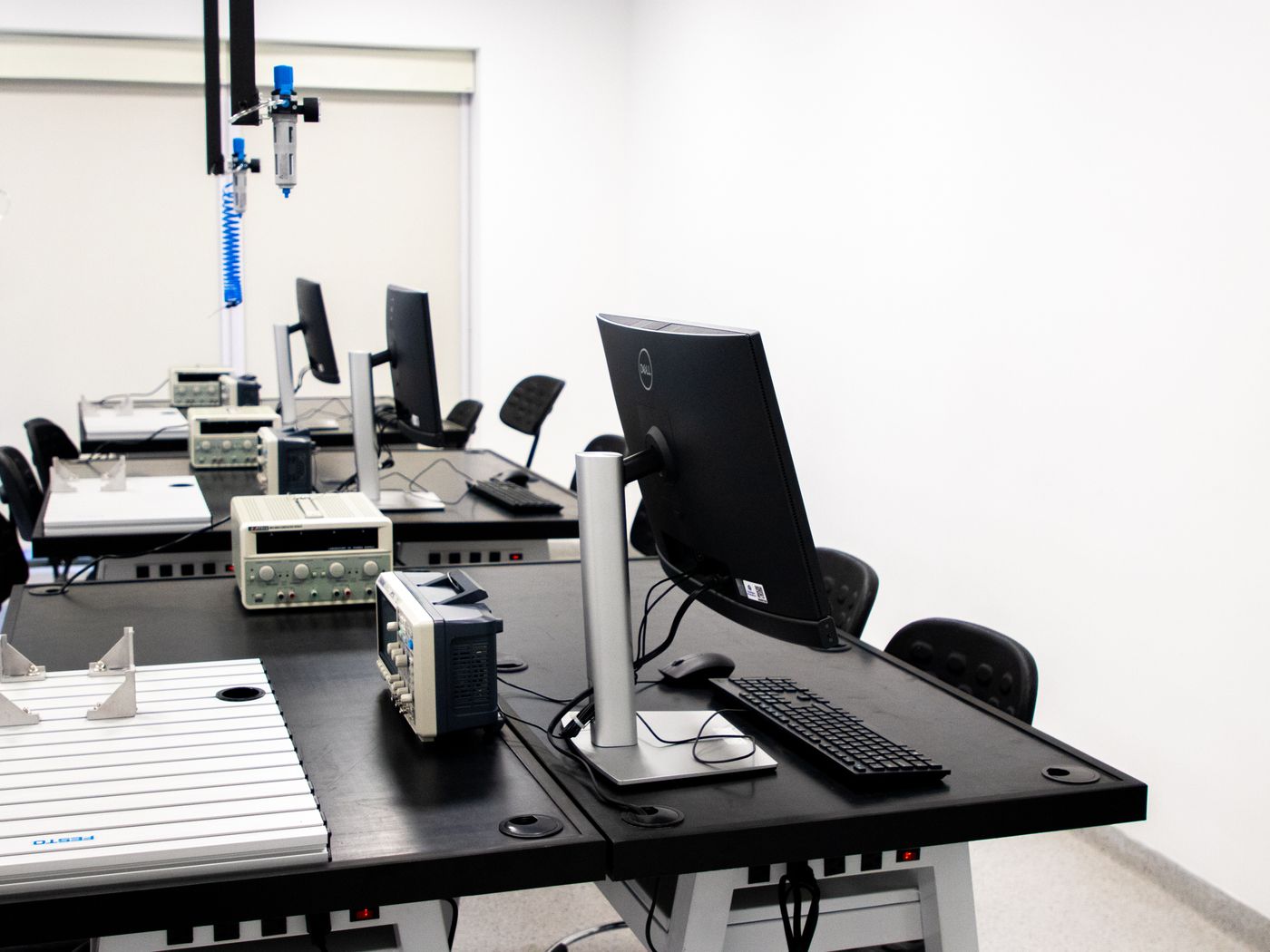
Before touching a workstation
Use dry hands. Keep food and drinks away. Look for loose cables, damaged plugs, unusual heat, liquid or a burning smell. Do not open equipment or reconnect damaged power parts; report them to the responsible teacher or technician.
One device, three roles
Operator: uses the keyboard and mouse. Coach: reads the steps and checks accuracy. Recorder: writes observations and filenames. Change roles so every learner practises.
What to prepare for review
Create the notice on the assigned computer, save it in an organised folder, and ask a facilitator or peer to compare the document with the folder and filename recorded here.
- ExplainRead the short concept in plain language.
- DemonstrateWatch the tutor or the relevant KAWA video.
- PractiseTry the skill on this page and on a computer.
- ProduceCreate something the ICT Club can use.
- RecordKeep the filename and folder as evidence.
Learning unit 1
Understand the computer as a system
Identify the equipment you can see, distinguish hardware from software and explain how input, processing, output and storage work together.
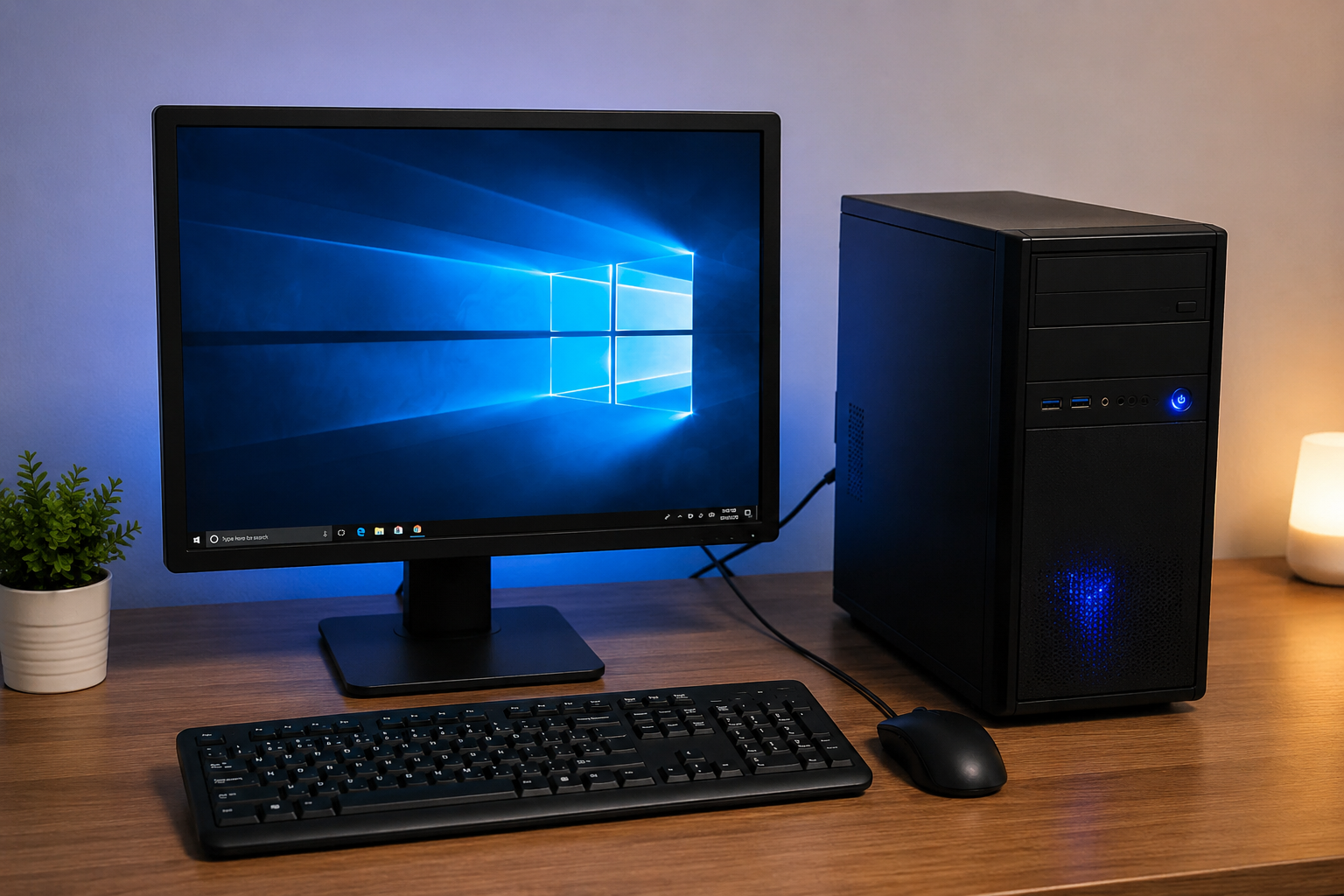
Hardware and software
Hardware is the physical equipment you can touch, such as a keyboard, monitor or system unit. Software is the set of programs and instructions that runs on the hardware, such as an operating system, word processor or browser.
Desktop, taskbar and application windows
After sign-in, the desktop is the main work area. The taskbar or dock shows open applications and common controls. An application window normally has a title bar plus minimise, maximise or restore, and close controls. Open only the assigned application and close it normally when the task is finished.
Workstation observation
At your assigned computer, list the connected equipment. Check its condition without opening it. Record one item that needs cleaning, repositioning or reporting.

Demystifying Computers: Inside the Brain, Hardware, and Power of Your PC!
While watching, identify one input device, the part that processes instructions, one output device and one storage example.
Required check 1: classify the equipment
Choose the main role of each item, then submit. The next unit opens after this first attempt; you may retry twice to improve the mark.
Learning unit 2
Start, sign in and shut down safely
Follow the school’s power arrangement, use only an assigned account, wait while the operating system loads and close the session correctly.

Before pressing the power button
Check that hands are dry and the workstation is clear. Look at visible power, display, keyboard and mouse cables. Use only switches, sockets or a UPS that the school has approved for learners.
During startup and sign-in
Press the computer power button once. If the startup screen is active, wait and observe. Sign in only with the account assigned to you and keep its password private. Repeated power-button presses can interrupt startup.
If nothing appears
Do not open the system unit or repair live power equipment. Recheck only the simple visible items your teacher permits, then report the exact signs: lights, sounds, screen message or absence of power.
Required check 2: arrange the startup steps
Select the five actions in the order they should normally happen. The approved power arrangement may differ between laboratories, so follow the local teacher’s instructions.
- Your selected steps will appear here.
Complete the shutdown decision
Practice on the assigned computer
With the teacher’s permission, demonstrate the complete routine: inspect, start once, sign in if required, identify the desktop or taskbar, open and close an allowed program, save a test file, sign out if required and shut down correctly.
Learning unit 3
Control the computer with input devices
Use a mouse or touchpad to point and select, then use the keyboard accurately for text, commands and common shortcuts.
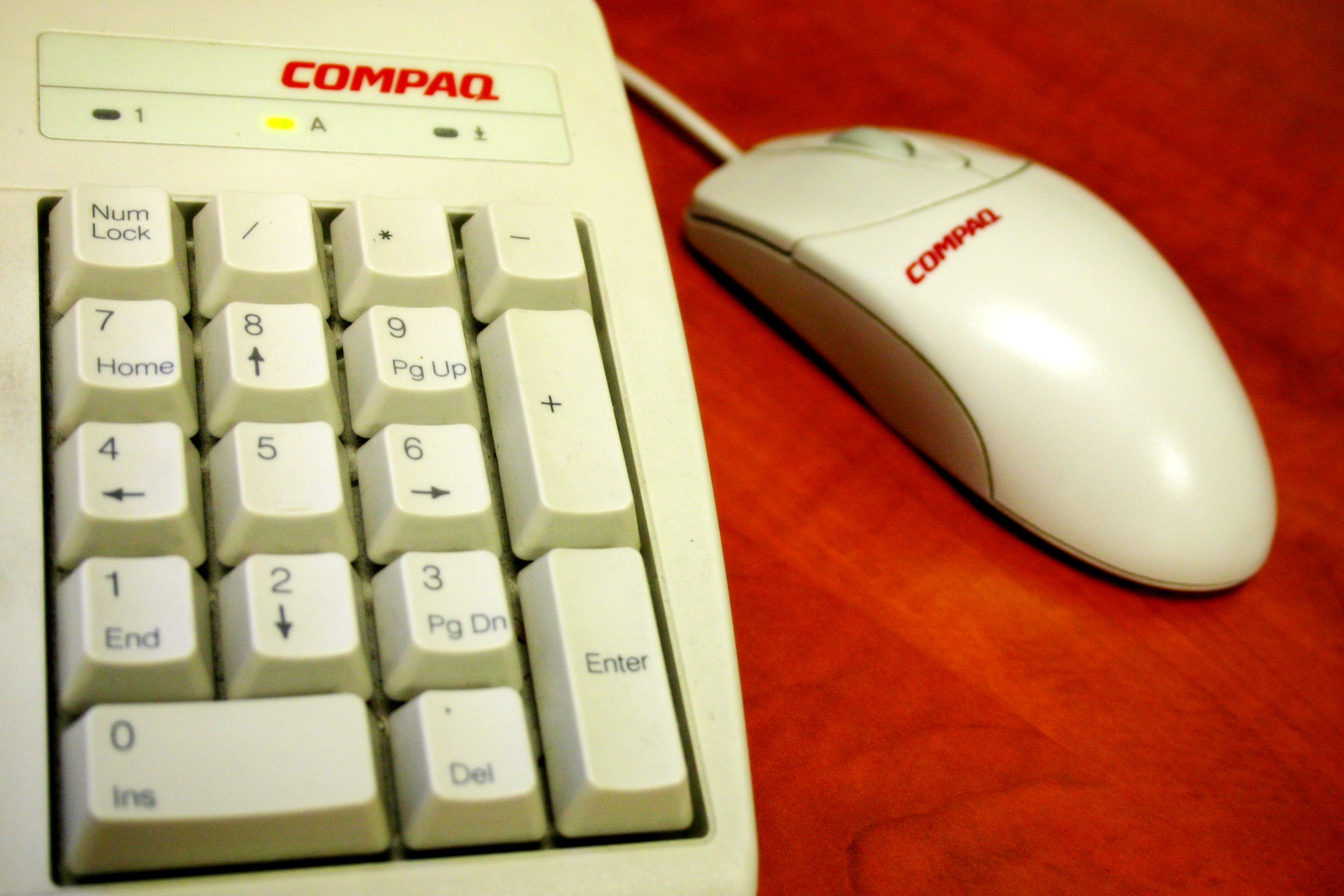

Mastering Computer Input Devices: From Keyboards to Biometric Scanners!
From 00:21, identify the keyboard, mouse, touchscreen and trackpad. For each one, state the information or action it sends to the computer.
Mouse and touchpad practice
Complete the four practice actions if your device supports them. These are practice records, not completion gates, because touchscreens and assistive technologies use different controls.
Use the wheel, touchpad gesture, touch drag or arrow keys to move down.
You reached the end of the practice area.No pointer practice recorded yet.
Important keys
Open each key to review its common purpose. Program behaviour can differ, so observe what happens before continuing.
Enter
Confirms an action or begins a new paragraph.
Spacebar
Inserts a space between words.
Backspace
Removes the character before the cursor.
Shift
Produces a capital or the upper symbol on a key.
Tab
Moves to the next field or tab position.
Escape
Often cancels or closes the current action.
Ctrl + S
Saves the current file in many programs.
Ctrl + C
Copies selected content.
Ctrl + V
Pastes copied or cut content.
Required check 3: type accurately and match shortcuts
Type the sentence as shown. Accuracy must reach at least 95%, then match all three shortcuts.
Learning unit 4
Manage files, folders and storage
Create a clear folder structure, use meaningful filenames, understand common file operations and keep a second copy of important work.


A useful ICT Club folder structure
Organise by purpose so another authorised club member can find the correct file without guessing.
- Administration
- Membership
- Meetings
- Training
- Projects
- Competitions
- Photos and Videos
Review the main file operations
Place each file in the best folder
Use the file’s purpose, not only its file type.
Choose storage and plan a second copy
Storage safety decision
Required check 4: make a backup plan
Choose two different storage locations and identify who is responsible for the second copy.
Learning unit 5
Create useful ICT Club work
Select the right application for a task, prepare a clear meeting notice and save it in the folder structure you planned.


Choose an application by purpose
Word processor: text-led documents. Spreadsheet: tables, calculations and records. Presentation: ideas shown to an audience. Media editor: preparing photographs, audio or video.
The application is a tool. Begin with the audience, the information and the result that is needed.
Match the club task to the best tool
Required check 5
Prepare a one-page ICT Club meeting notice
First create the document in a word processor on the school computer. Then enter the same information here to keep a printable learning record.
Record the saved work for review
Enter the actual folder and filename, then let a facilitator or peer compare this record with the document on the computer.
ICT Club Meeting Notice
Add the purpose of the meeting and what members should bring.
Final knowledge check
Confirm the decisions behind the skills
Answer the five questions, then submit. Your score contributes two marks to the course total. You may use up to three attempts; the best result is kept.
Course completion record
Attempt every check once. The course then records the best mark out of 10 and requests Course 2 automatically. A lower score never blocks progression.
Mark allocation: computer system 1.5; safe operation 1.5; keyboard and input 2; files and storage 1.5; club document 1.5; final knowledge check 2.
Attempt each check once to finish the course. Correct answers improve the mark but do not block progress.
Progress is recorded when a learner submits a check, not when a section or video is opened. Each check allows three attempts and keeps the best mark. Practical work should still be reviewed against the saved document, folder and filename.